Managing Sidekiq from VS Code

If you work with Ruby on Rails and Sidekiq you are probably familiar with the Sidekiq Web UI. It is a useful tool for monitoring queues, retrying failed jobs, and checking worker status. The downside is that it runs in the browser. You have to leave your editor, navigate to the dashboard, do what you need, and switch back. If you are managing multiple environments this means multiple tabs and a lot of context switching.
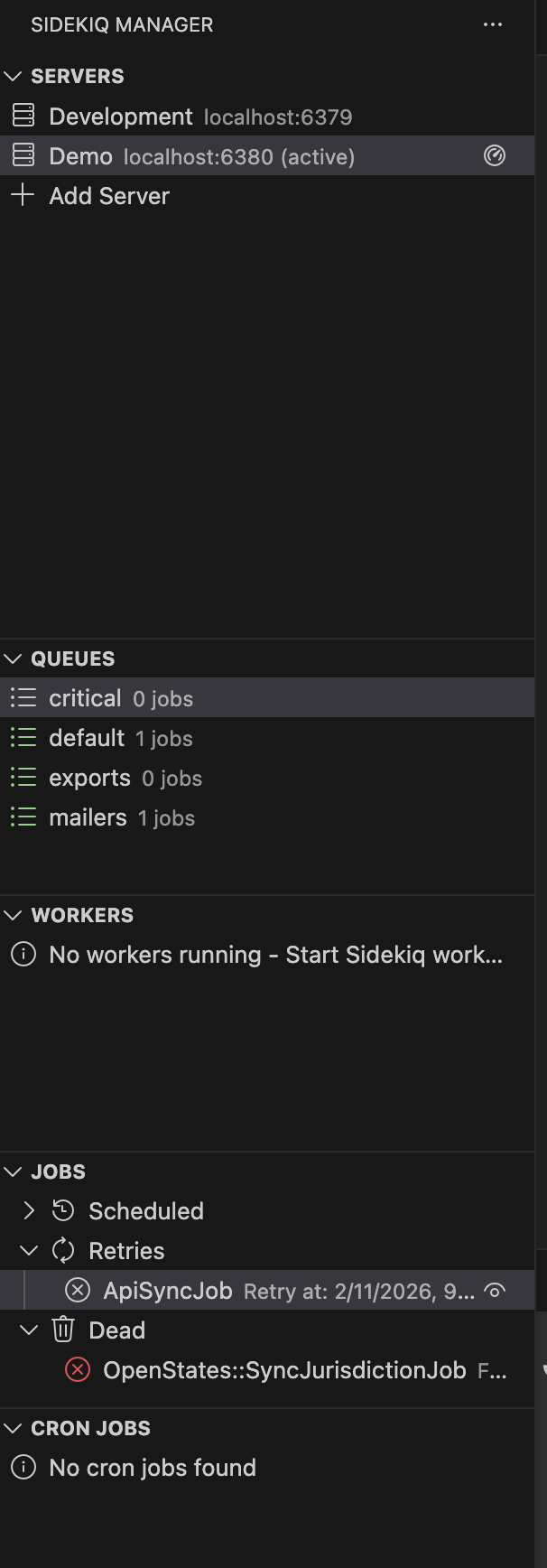
I built a VS Code extension called Sidekiq Manager to solve this. It brings the full Sidekiq dashboard experience into your editor. In this post I will walk you through what it does and how to get started.
Installation
Open VS Code, press Ctrl+P (or Cmd+P on Mac), and type:
ext install antarrb.sidekiq-manager
You will need VS Code 1.74.0 or later and network access to a Redis server running Sidekiq.
Connecting to a Server
Once installed, open the command palette and run "Sidekiq: Connect to Server". Enter your Redis connection details and the extension will connect and start pulling metrics. Credentials are stored securely using VS Code's built-in secret storage.
You can add this to your settings.json if you prefer to configure servers manually:
{
  "sidekiq.servers": [],
  "sidekiq.refreshInterval": 30,
  "sidekiq.theme": "auto"
}
The refreshInterval controls how often the dashboard polls for new data in seconds.
The Dashboard
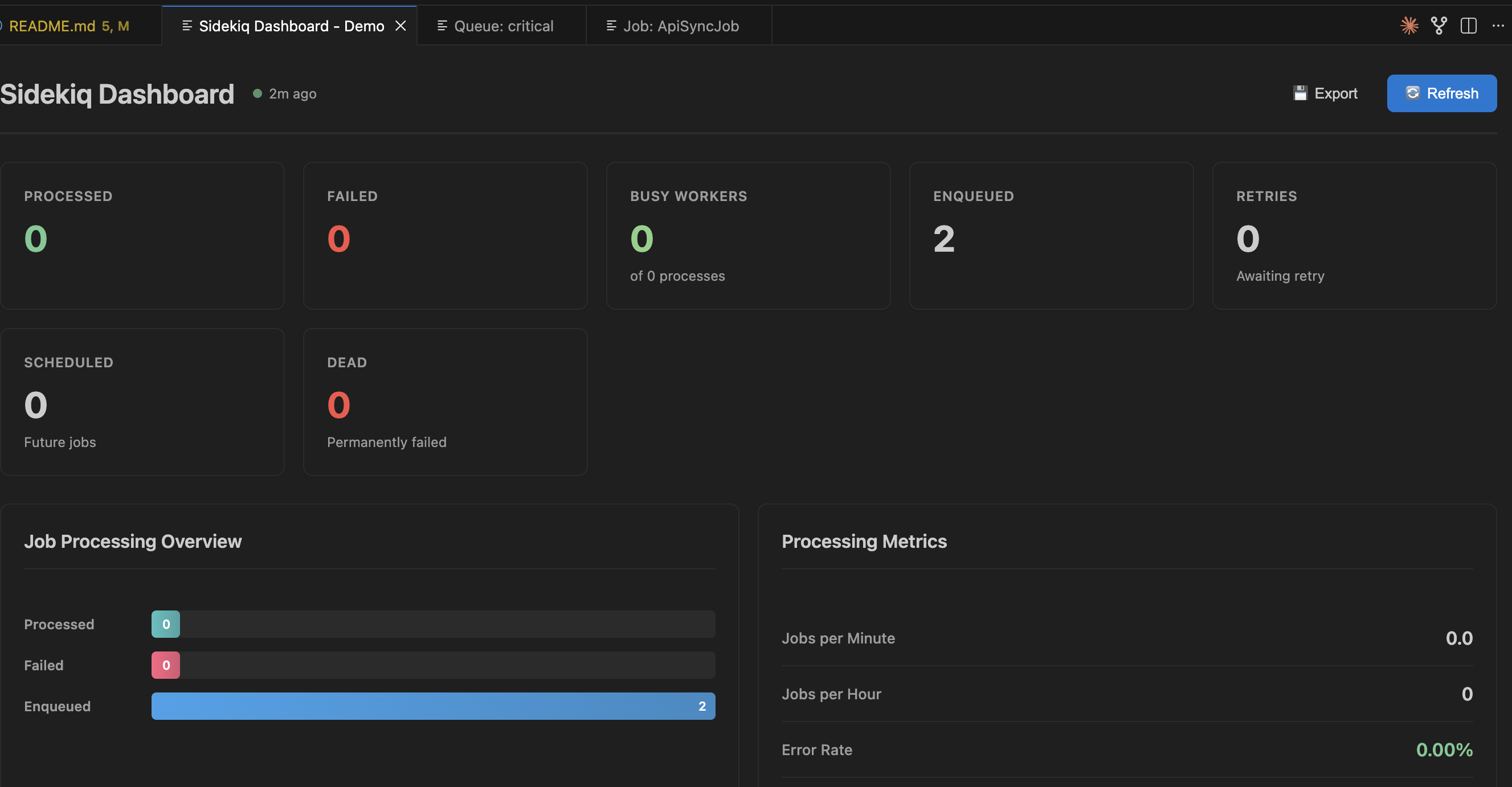
Click the Sidekiq icon in the Activity Bar or press Ctrl+Shift+S to open the dashboard. It shows real-time metrics including job processing rates, queue depths, latency, worker status, and failed job counts. This is the same information you would find in the Sidekiq Web UI but rendered inside a VS Code webview.
Queue and Job Management
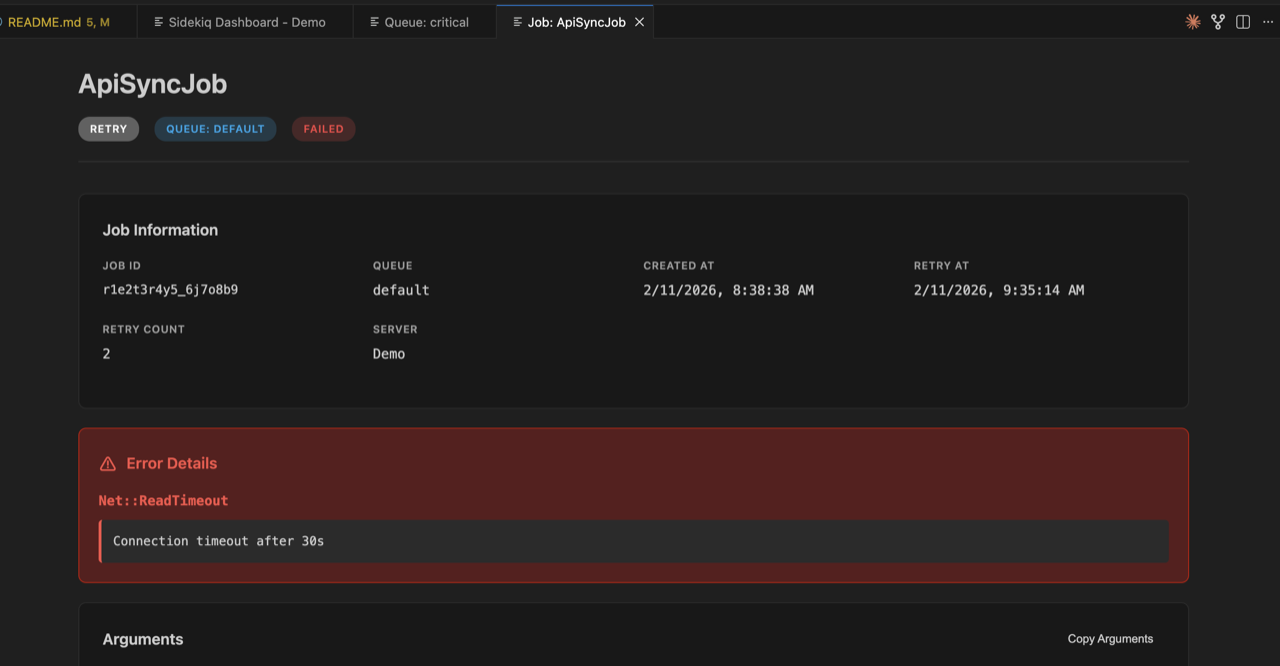
From the dashboard you can view all active queues, clear them, and pause or resume processing. You can inspect individual jobs to see their arguments and error details. Failed jobs can be retried or deleted. You can also move jobs between queues and perform bulk operations by selecting multiple jobs with Ctrl+Click.
Some useful keyboard shortcuts for job operations:
Delete— delete selected job(s)Ctrl+R— retry selected job(s)Shift+Delete— delete all selected- Right-click for the full context menu
Multi-Server Support
This is the feature I find most useful. If you work across development, staging, and production environments you can connect to all of them at once. The status bar shows which server is active and you can switch between them with Ctrl+Alt+S or use Ctrl+1 through Ctrl+9 to jump directly to a specific server.
Each server can be labeled with its environment so you always know which one you are looking at.
Worker Monitoring
The extension lists all active workers, shows what job each one is currently processing, and displays process information. If needed you can perform graceful termination of workers directly from the extension.
Getting the Extension
Sidekiq Manager is available on the VS Code Marketplace. The source is on GitHub. If you run into issues or have feature requests please open a GitHub issue.
The extension is free for noncommercial use under the Polyform Noncommercial License. Commercial licensing is available for businesses.
Please share any feedback to improve this or other postings.